 PicMason
Image splitter
Preview your grid. Export every piece.
Images stay on your device. Your original is unchanged.
Start with an example
Pick an image to try its layout. All settings are yours to change.
One picture, different layouts
Choose a grid.
Or go in one direction.
Turn a photo, illustration or design into separate image files for a layout or web project. Set both rows and columns for a grid, or divide the image into horizontal or vertical strips.
The preview shows every cut and its number. The whole image stays in the plan, with no stretching or automatic cropping.

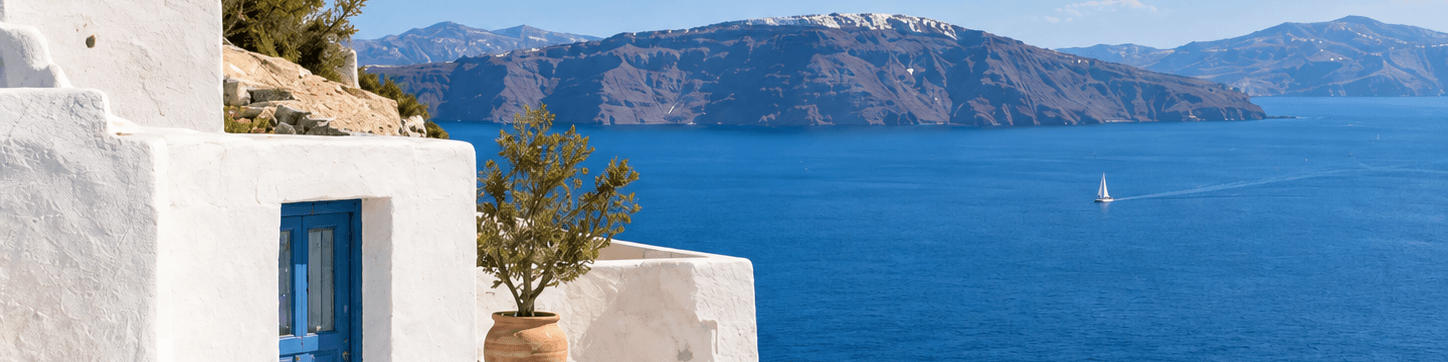
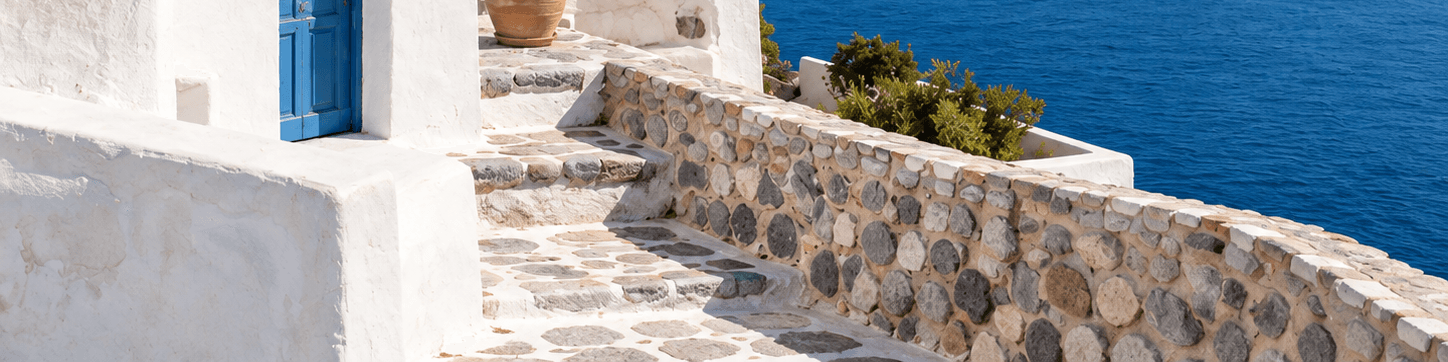








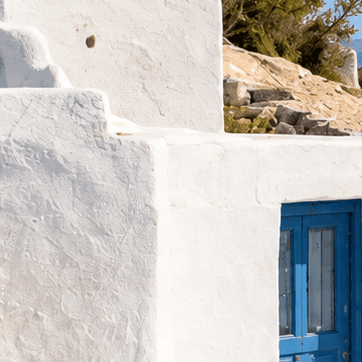
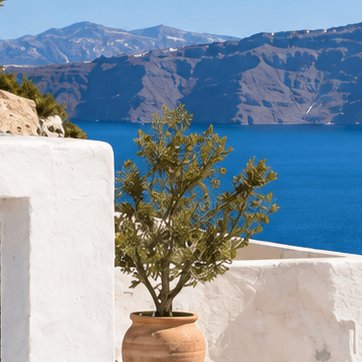



How to split an image
From a local file to an organized set of tiles.
Choose your image
Drop one JPEG, PNG or WebP into the tool, or choose a file. Try the sample if you want to explore first.
Set the cuts
Choose a grid or strips. Adjust the rows and columns, then check the boundaries and dimensions in the preview.
Generate and download
Pick PNG, JPEG or WebP and generate the tiles. Download individual pieces or the complete ZIP with its size list.


Actual exported pieces, enlarged to show the boundaries.
The extra pixel has a place
Not evenly divisible?
Nothing gets left out.
A 101 × 103 px image cannot divide into 12 identical pieces. Its four columns are 25, 25, 25 and 26 px wide; its three rows are 34, 34 and 35 px high.
The first tile is 25 × 34 px. The last is 26 × 35 px. Those slightly larger edge pieces keep the full picture covered, with no missing or repeated pixels between cuts.
Download the 101 × 103 sample See how the boundaries work
Pick the right output
Keep transparency.
Or choose a background.
- PNG
- Use it for transparent edges and graphics. It keeps usable transparency from the decoded image.
- JPEG
- Use it when you want a solid background. Choose its color and a quality from 10–100; JPEG recompresses the image.
- WebP
- Keep transparency with adjustable, lossy compression. Set a quality from 10–100. Check that the app receiving your tiles accepts WebP.

PNG
Transparent edge

JPEG
White background · quality 92
Checkerboard shows transparency; it is not in the PNG.
coast-3x4-tiles.zip
coast-r01-c01.png362 × 362 pxcoast-r01-c02.png362 × 362 px- … 12 image files in total
dimensions.csvTile sizesmanifest.jsonCoordinatesREAD-ME.txtExport notes
An order you can follow
Every piece has
a place and a name.
Tiles run left to right across each row, then top to bottom. Filenames include the row and column: r01-c01 means row 1, column 1. A simplified version of your source filename becomes the prefix.
The complete ZIP includes every piece, a CSV of dimensions, a JSON manifest with coordinates, and export notes. You can also download tiles individually and save the CSV separately.
Read the tile order and naming guideBefore you export
Image splitter FAQs
Sizes, formats and a few practical details.
How your image stays localCan I split an image into equal parts?
Yes, when its width and height divide evenly by your chosen columns and rows. Otherwise, the pieces differ by at most one pixel. All edges are kept. Splitting does not crop or pad the image into equal squares.
How do I split an image horizontally or vertically?
Choose Horizontal strips to set the number of rows with one column. Choose Vertical strips to set the number of columns with one row. Grid lets you choose both. Check the numbered preview before generating files.
Does splitting reduce image quality?
The split keeps the source pixel dimensions without resizing. PNG retains the decoded image and usable transparency. JPEG and WebP use lossy compression at your selected quality; WebP can also keep transparency. Browser decoding can affect colors and partial transparency. Exports do not preserve the original compressed bytes, EXIF, GPS, ICC or DPI metadata.
Which image formats and sizes are supported?
Choose one static JPEG, PNG or WebP, up to 20 MB (20 × 1024² bytes), 24 megapixels and 16,384 pixels per side. Use 1–10 rows and 1–10 columns, up to 100 pieces. Each piece must be at least one pixel wide and high. Animated files, SVG, AVIF and HEIC are not supported. Smaller images are recommended on phones.
Can I use the tiles for a social media grid or printing?
You can download the pieces for use in another app. This tool preserves the full rectangular image; it does not add square crops, platform-specific layouts, posting order, print overlap or page-size settings. Check the destination’s current size requirements before publishing or printing.
Are my images uploaded? Do I need an account?
Your selected image is processed in your browser and is not sent to a server. The original file is not changed. There is no account or payment step. Clear removes the current image and generated results from the tool; downloaded files remain on your device.
Where do downloads go on my phone?
Your browser chooses where files are saved. Check Downloads or the Files app, then unzip the archive. If a ZIP download does not save, try individual tile links. Clicking a download link tells the browser to save a file; it cannot confirm that your device saved it.
A closer look at your results
All guidesHave an image ready?
Back to the image splitter